
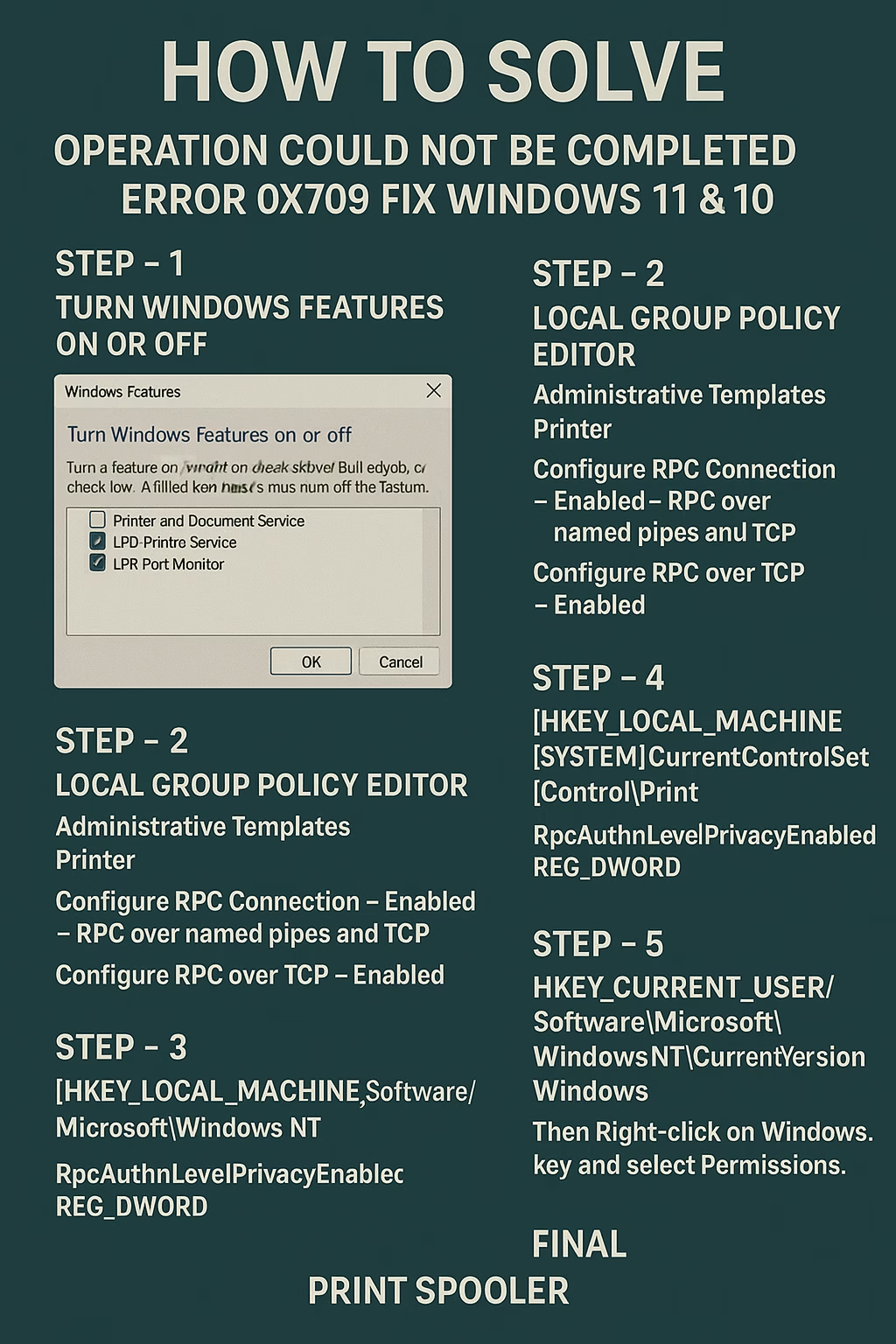
If you’re trying to connect to a network printer and receive the message:
“Operation could not be completed(error 0x709).The specified printer cannot be found.” -you’re not alone. This is a common Windows issue, especially in enterprise environments.
In this blog, we’ll walk you through step-by-step solutions to resolve the 0x709 error in Windows 11 and Windows 10, covering system settings, policy changes, registry tweaks, and print spooler services.
🛠️ Step 1: Enable Required Windows Features
- Press
Win + R, typeoptionalfeatures, and hit Enter. - In the Windows Features dialog:
- ✅ Enable Printer and Document Services
- ✅ Check LPD Printer Service
- ✅ Check LPR Port Monitor
Click OK and restart your system if prompted.
🛡️ Step 2: Configure Local Group Policy Editor
📌 Only available in Windows Pro and Enterprise versions.
- Press
Win + R, typegpedit.msc, and press Enter. - Navigate to:
Computer Configuration > Administrative Templates > Printers - Configure the following settings:
- Configure RPC Connection → Enabled → Select
RPC over named pipes - Configure RPC Listener → Enabled → Choose
RPC over named pipes and TCP - Configure RPC over TCP → Enabled
- Configure RPC Connection → Enabled → Select
Click Apply and OK after each setting.
🧩 Step 3: Registry Editor – Printer RPC Configuration
⚠️ Registry edits can be risky. Please backup the registry before making changes.
- Press
Win + R, typeregedit, and press Enter. - Go to:
HKEY_LOCAL_MACHINE\Software\Policies\Microsoft\Windows NT\Printers\RPC - Create or modify the following values:
RpcUseNamedPipeProtocol(REG_DWORD)0= Use RPC over TCP1= Use RPC over Named Pipes (Recommended)
🔐 Step 4: Modify Print Security Level in Registry
- Navigate to:
HKEY_LOCAL_MACHINE\SYSTEM\CurrentControlSet\Control\Print - Locate or create the DWORD:
RpcAuthnLevelPrivacyEnabled- Set its value to
0
- Set its value to
This disables privacy enforcement, allowing easier communication with network printers.
🧾 Step 5: Check Registry Key Permissions
- Navigate to:
HKEY_CURRENT_USER\Software\Microsoft\Windows NT\CurrentVersion\Windows - Right-click on the
Windowskey → Select Permissions - Make sure your user account has Full Control access.
Click OK to apply changes.
🔁 Final Step: Restart Print Spooler Service
- Press
Win + R, typeservices.msc, and hit Enter - Find Print Spooler in the list
- Right-click → Restart
- (If it’s stopped, click Start)
✅ Conclusion
By following the above steps, you can fix the error 0x709 when connecting to a shared or network printer in Windows 11 or 10. This error typically occurs due to misconfigured RPC settings, disabled print services, or permission issues.
👉 Related Guide:
📄 How to Troubleshoot Print Spooler Issues in Hotel Networks (Internal Link)
🖨️ Top 5 Network Printers for Hotels & Offices (2025 Recommendations)
If you’re setting up a new printer on your network, here are the top-rated network printers that are highly compatible with Windows 11/10:
- HP MFP M128Fn Laserjet
🔹 Fast, reliable, and ideal for hotel office.
📌 Need More Help?
Explore more expert guides at HotelITSupport for everything from printer troubleshooting to Windows networking.